
Capture notes without an Action Button on iPhone and iPad
The Action Button is the fastest way to start a note, but you have other options. On any iPhone or iPad running iOS 26, you can record from Control Center or with Siri. You can also type a note.
Updated October 29, 2026
Record from Control Center
- Open Control Center by swiping down from the top-right corner.
- Touch and hold an empty area, then tap Add a Control.
- Find Memory Notes in search and select Record Memory.
- To start a note, open Control Center and tap the control. Tap it again to stop and save.
Control Center
Touch and hold an empty spot → Add a Control → search “Memory Notes” → Record Memory.
Tap it to start a note, and tap again to save. The same control can sit on the iPhone Lock Screen.
Record from the iPhone Lock Screen
On iPhone, you can set either of the two buttons at the bottom of the Lock Screen to any control. Touch and hold the Lock Screen and tap Customize. Choose the Lock Screen, tap the minus on one of the bottom buttons, then tap the plus and select Record Memory. iPad Lock Screens don't have these buttons, so use Control Center instead.
Record with Siri
Ask Siri:
Record a memory in Memory Notes.
Siri will start recording. It's useful when you're driving, cooking or have your hands full.
Record or type in Memory Notes
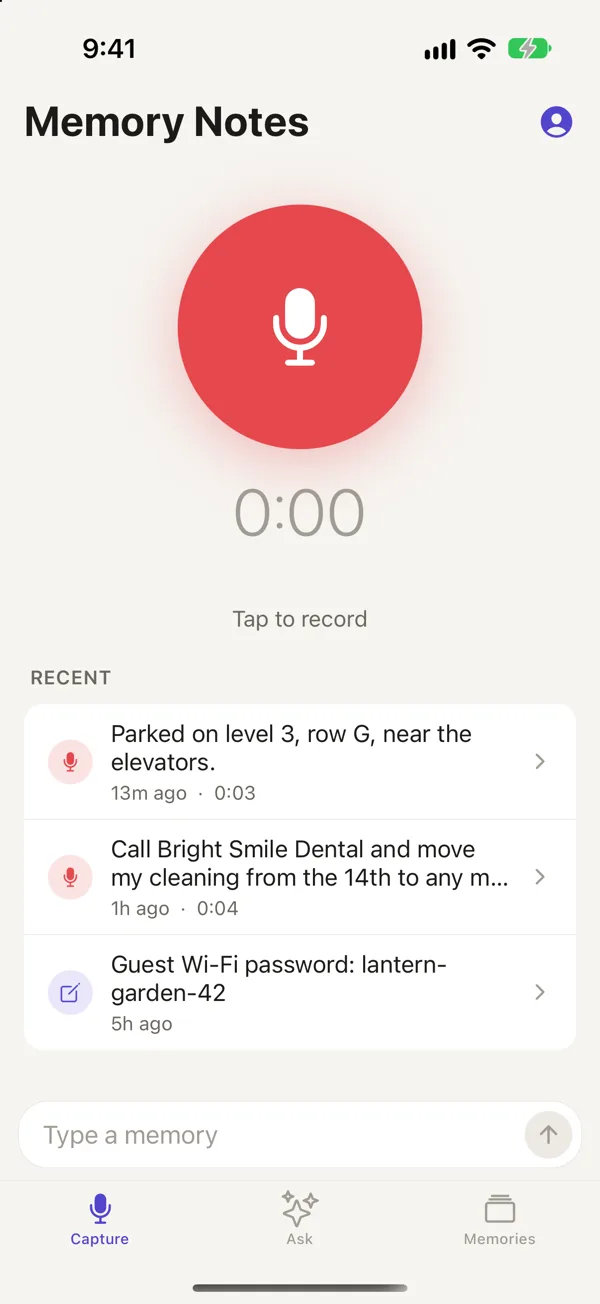
Open Memory Notes and go to the Capture tab. Tap the large record button to start, then tap it again to save. You can also type a note in the Type a memory box at the bottom. That can be a better fit for a Wi-Fi password or a long number you don't want to read aloud.
Capture notes on iPad
iPads don't have an Action Button, so use Control Center, Siri or the app to capture a note. Memory Notes works in Split View, Slide Over and Stage Manager, letting you keep it beside whatever you're working on.
Questions
Can I type a note instead of recording one?
Yes. On the Capture tab, type your note in the Type a memory box at the bottom and tap the arrow. Typed and spoken notes appear in the same list, and both show up in Ask.
Can I use the Record Memory control on an iPad?
Yes. You can use it in Control Center. iPad Lock Screens don't support custom controls.
Memory Notes for iPhone and iPad
Record a note by voice in a second or two, then find it by asking a question. Memory Notes answers from your notes and shows you the one it used. For iPhone and iPad.